Quick Cart
" Thank you for purchasing our plugin. please feel free to email via our user page contact form here. Thanks so much! "
The module improves conversion rate and enhances the shopping experience by allowing customers to directly add products to the mini cart through a single click without landing on any other pages. From the mini cart, customers can apply coupon code and proceed for a quick checkout.
The longer you put the “Add to cart” option away from customers, the longer it takes for them to make a decision. Providing a quick and simple way to get the required information of the products, add the products to the cart, apply coupon code and proceed to checkout, helps customers to place orders in a few, simple and quick steps. Making them wait no longer to go through different pages, unwanted information, and outnumbered steps. Quicker the checkout process, the quicker the purchase.
SetuBrigde’s Quick Cart Magento 2 Extension allows customers to browse product catalog displaying prior information related to the product in a handy window on the category page. Along with the information, there displays a button called “Add to cart”, with the click on this, the product directly gets added to the mini cart. Customers can continue shopping further without facing any pop-up or tab displaying cart information. Customers can see the present mini cart details with a click on the mini cart icon displayed at the right top.
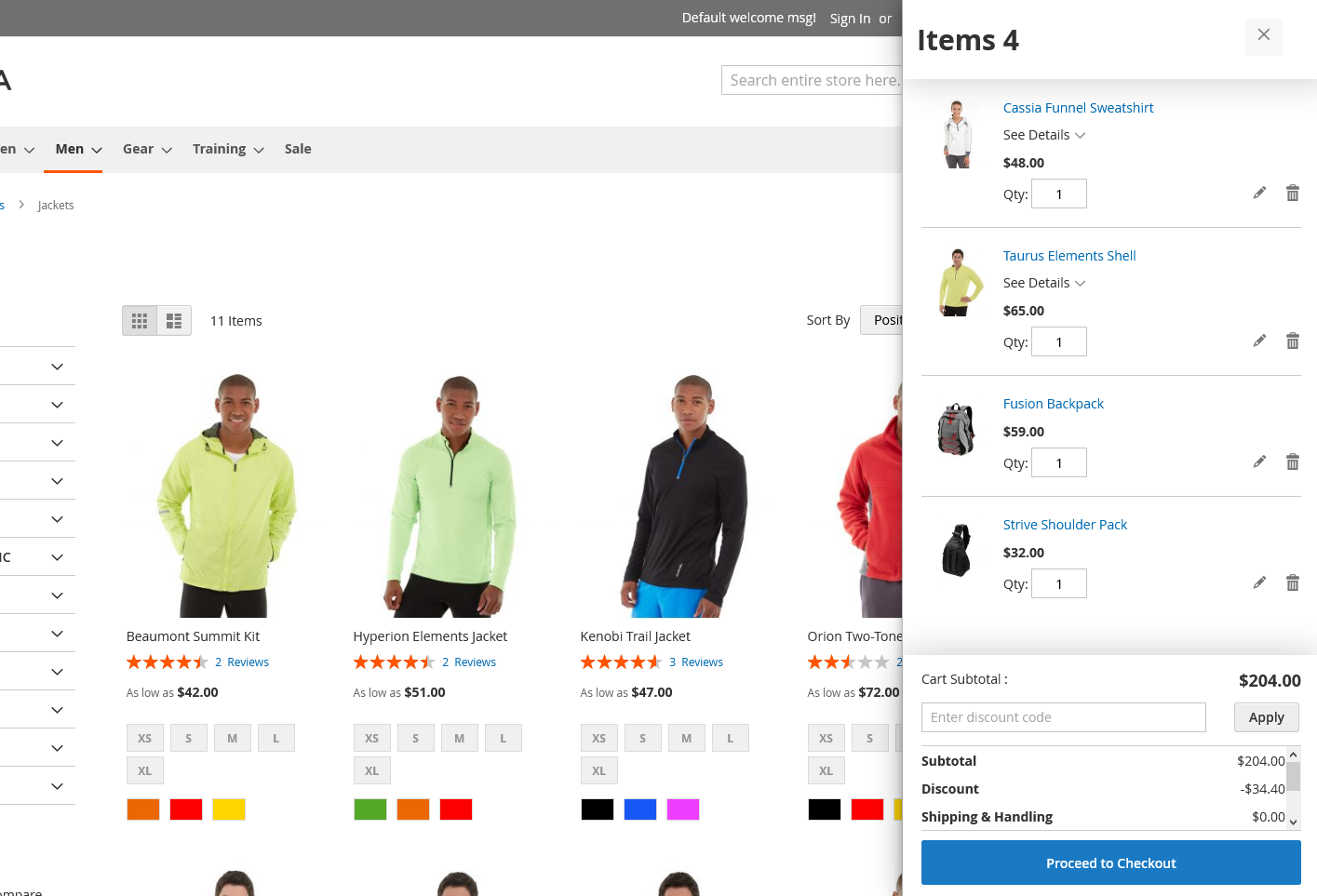
In the mini cart, customers can select the number of quantities they want of the product, apply coupon codes, and proceed for quick check out. The mini cart displays all the necessary information needed to place an order like purchase product name, product image, quantity, cart subtotal, application of coupon codes, taxes, and grand subtotal.
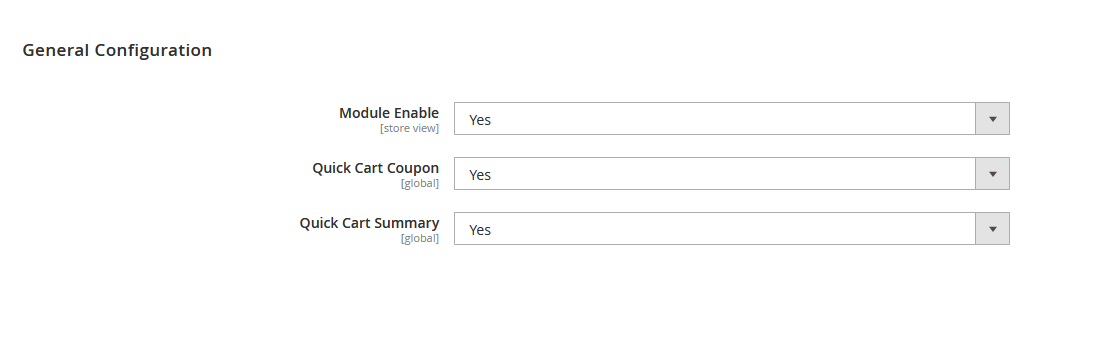
The module allows the Magento store admin to enable/disable the module from the backend. Along with this, the admin can also opt to display the option of applying coupon code at the mini cart or not. The Admin panel also has control over the projection of the cart summary. The option to display the cart summary at the mini cart can be disabled from the backend.
Here is few highlighted features:
- Fully responsive module
- Provides quick and enhanced checkout process
- Enable/disable the option to display the “Apply coupon code” option
- Selection of product quantity in mini cart
- Enable/disable the option to display cart summary in mini cart
To use this Shipping Bar you have to Go to STORES > Configuration > SETUBRIDGE > Notification Bar Tab:
- The Admin panel has control to enable/disable the module. The admin can also enable/disable the display of cart summary as well as the option for the application of the coupon code.
- With the click on the Cart icon displayed on the right-side top, the customer will be presented with a mini cart, consisting of the required information about the products and the total amount.
"If you have any other questions or problems regarding this plugin, you can always contact us using the contact form and we'd be happy to help you. No guarantees, but we'll do our best to assist."
Our support operators are always glad to help you here [email protected]
Note: We are happy to help with setup and any bugs you may stumble upon.