Progressive Web Apps
" Thank you for purchasing our plugin. please feel free to email via our user page contact form here. Thanks so much! "
Progressive Web Apps for Magento apply modern web capability to deliver an exciting app like experience on the mobile web to your users. It develops from a browser tab and makes pages more immersive with a low friction user experience. It is a web technology for making a website which acts and feels like an application. A user can launch Progressive Web Apps same as a native application regardless of browser choice. More specifically, when the customers visit your site they can add PWAs to their home screen just one click. Once open from the home screen, it can even hide the browser UI controls and appear as an app. For users, they don't need to go app store for either installation or updates.
One of the most special features of the Progressive Web Apps is the ability to work without an internet connection. The service workers will cache the information when the device is online and therefore are able to display it at any time even when the connection is uncertain or vanished.
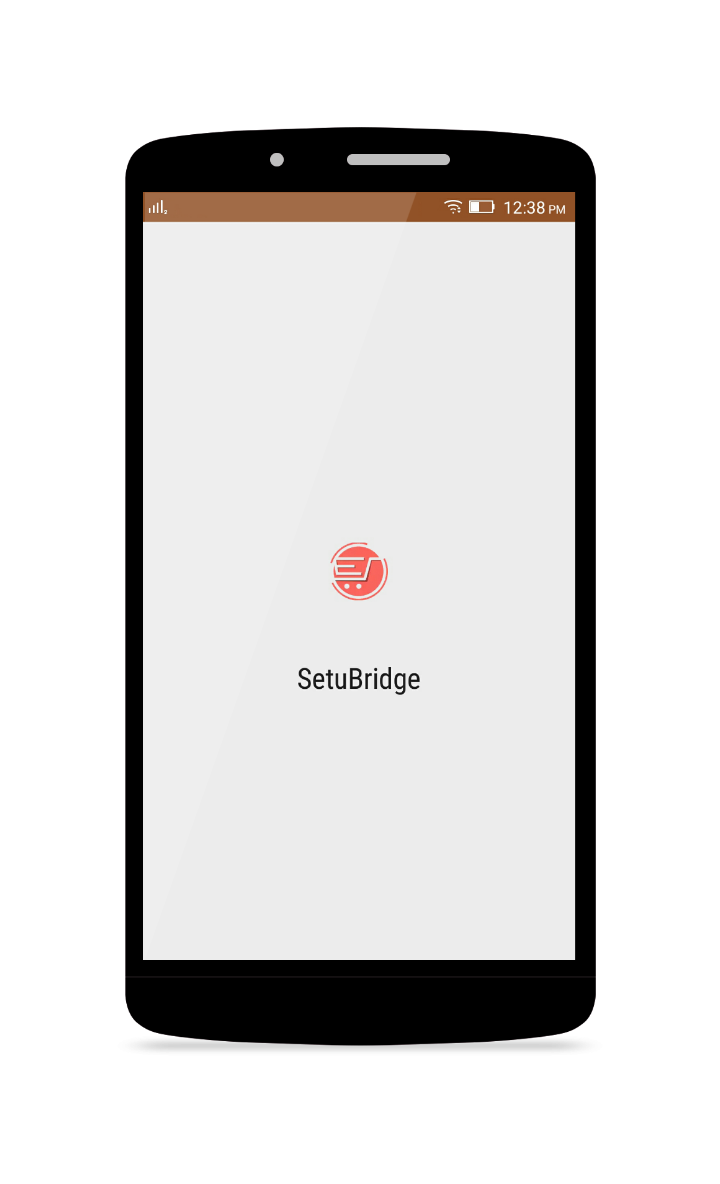
The application launches with a splash screen. The splash screen shows the application name and icon. The application launches in the same way as the native app. The admin can easily manage the Push Notifications like add, edit or delete any push notification. So it's easy to notify your customers of news and promotions.
Hence, your users can get a great experience with the accelerated loading speed, even the on the flaky network, useful push notifications, instant access on homescreen, and so on. In fact, the users are accessing your website that acts and feels like an app. As a result, your customer experience will be enhanced, more traffic will be driven, conversions are boosted and sale volumes will go sharply for sure.
Here is few highlighted features:
- Works lightning fast if compared to the website
- Support offline mode, admin can choose offline page
- Launches without the internet or low-quality internet
- Completely responsive on all the platforms
- Admin can enter the application name
- Admin can upload and change the application icon
- Admin can set the theme color of the PWAs
- Admin can set the splash background color of the PWAs
- Supports push notification. Admin can also send multiple notifications at a time
In this step by step documentation we will show you how to install a Progressive Web Apps.
Step 1. Backup your web directory and store database
Step 2. Download Extension package file
Step 3. Upload & Unzip package folders to store root
Step 4. Login into SSH console & reach to store root folder:
cd path_to_the_store_root_folder
Open Magento Root directory & run below series of commands one by one
php bin/magento setup:upgrade

php bin/magento setup:di:compile

php bin/magento setup:static-content:deploy

php bin/magento cache:flush

Step 5.
From Backend,System > Cache Management.
1. Flush Magento Cache
2. Flush Cache Storage
3. Flush JavaScript/CSS Cache

composer require google/apiclient:"^2.0" --no-update
composer require cache/filesystem-adapter --no-update
composer update
To use this Progressive Web Apps you have to Go to STORES > Configuration > SETUBRIDGE > Progressive Web Apps Tab:
- Here is a configuration option to Enable/Disable Progressive Web Apps.
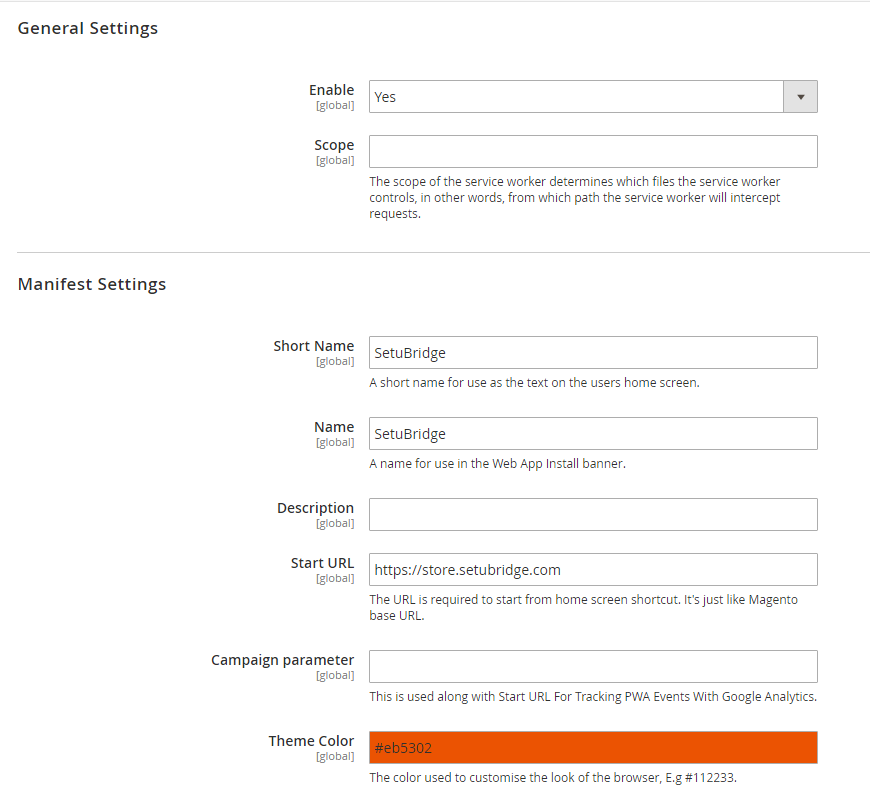
- According to the needs of an organization, an admin can select application name, Theme colour, Splash Screen, Display Type, Screen orientation etc by using given configurations.
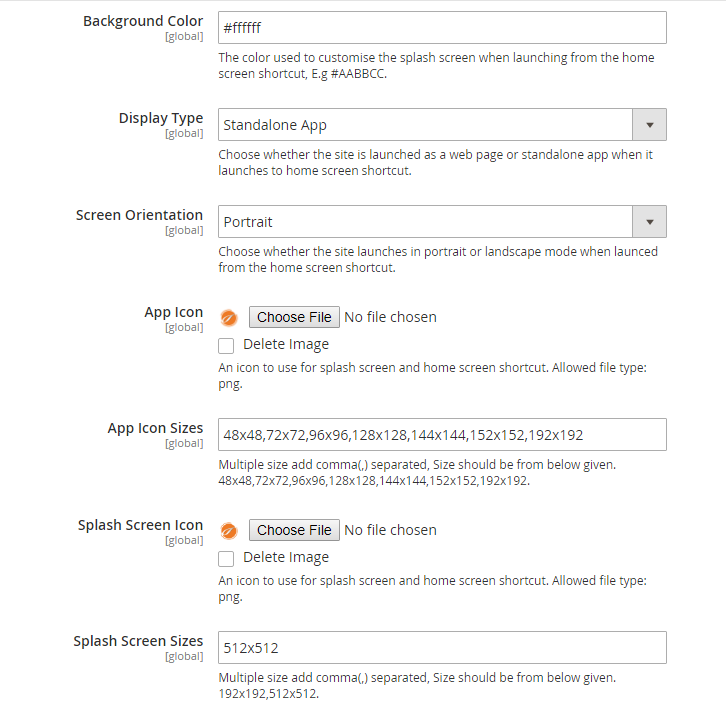
- There are app manifest configurations like background color, icon, name of app etc. which gives rights to design your app for front-end.
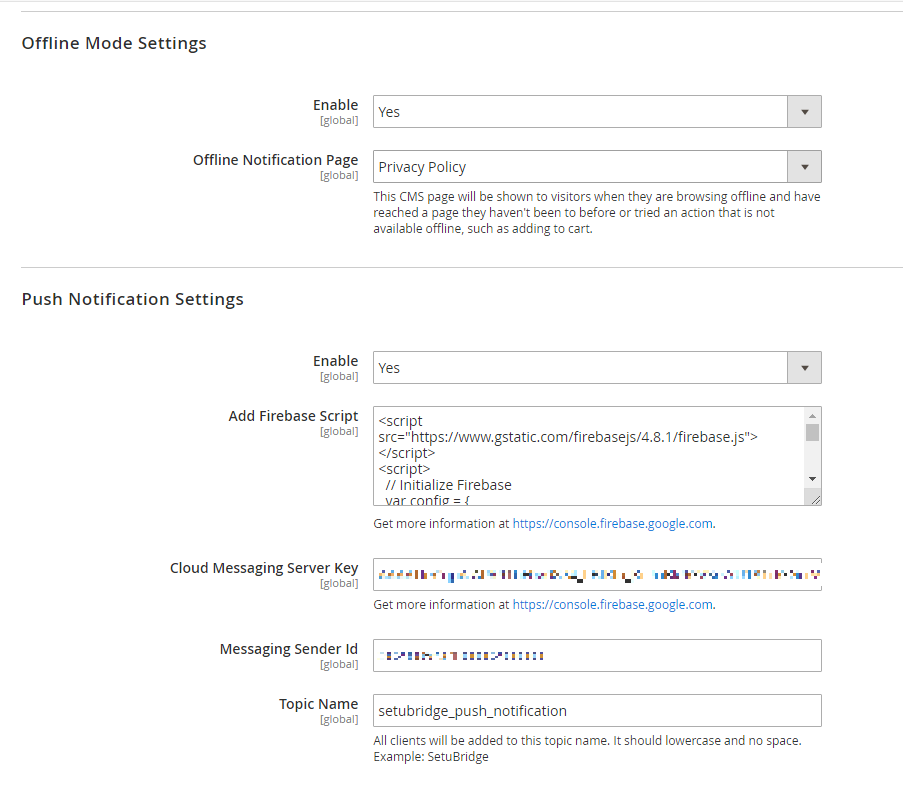
- Push Notifications
- 1. Login to https://console.firebase.google.com/
- 2. Create a new Firebase project
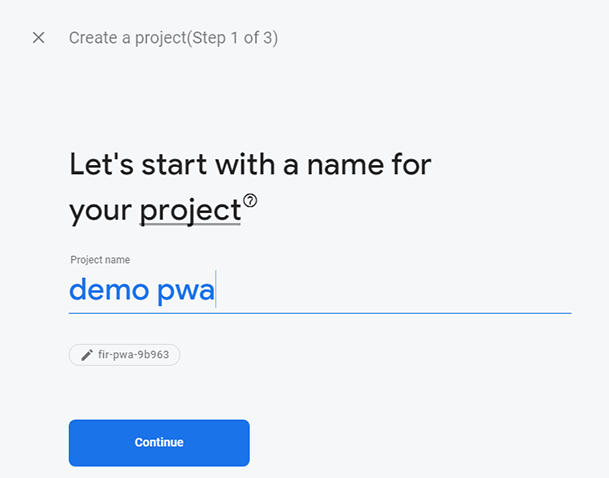
- 3. Click on () Web icon to create a new web app
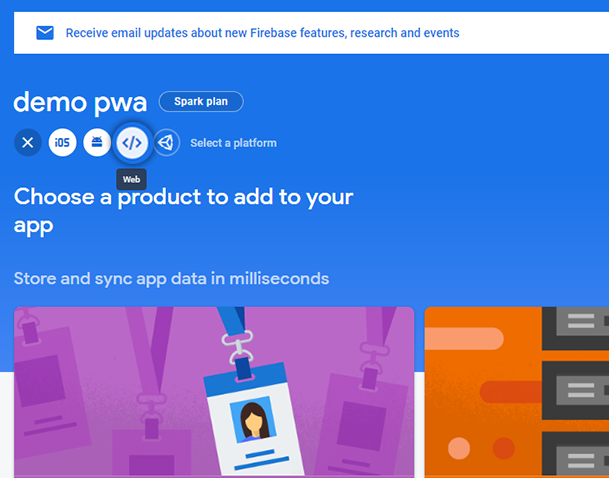
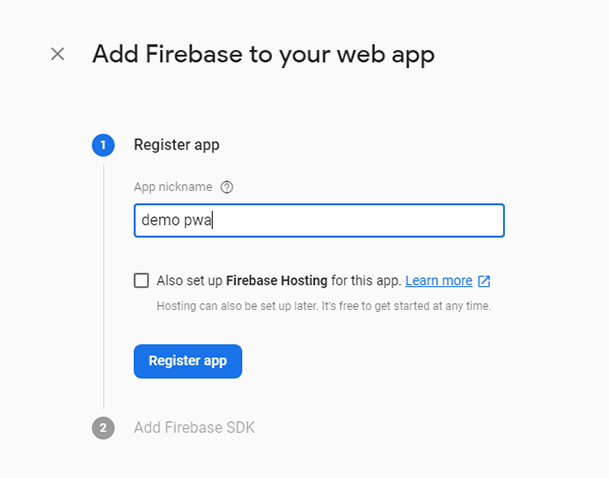
- 4. Get Firebase Script for your PWA
- 5. Open the Cloud Messaging tab of the Firebase console Settings pane and scroll to the Web configuration section.
- 6. In the Web Push certificates tab, click Generate Key Pair. The console displays a notice that the key pair was generated, and displays the public key string and date added.
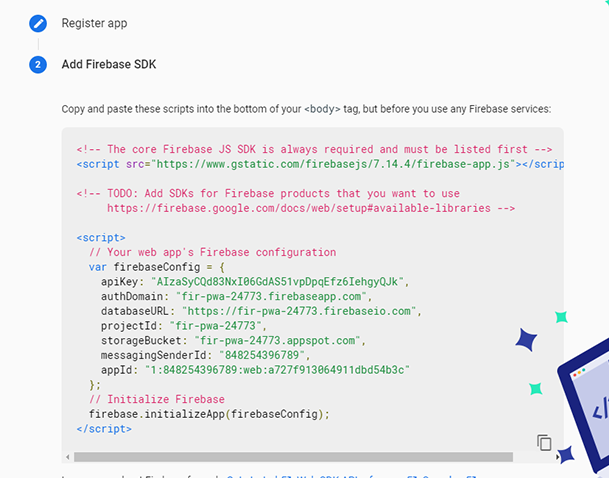
- 7. Copy & Add Server key & Sender ID in PWA extension backend

- The offline mode on this module can be enabled or disabled in accordance with the given configuration. In case, offline mode is selected an admin can set a CMS page to for the offline mode. One can add a Firebase Script, Server key, and Messaging Sender ID generated by your firebase account.
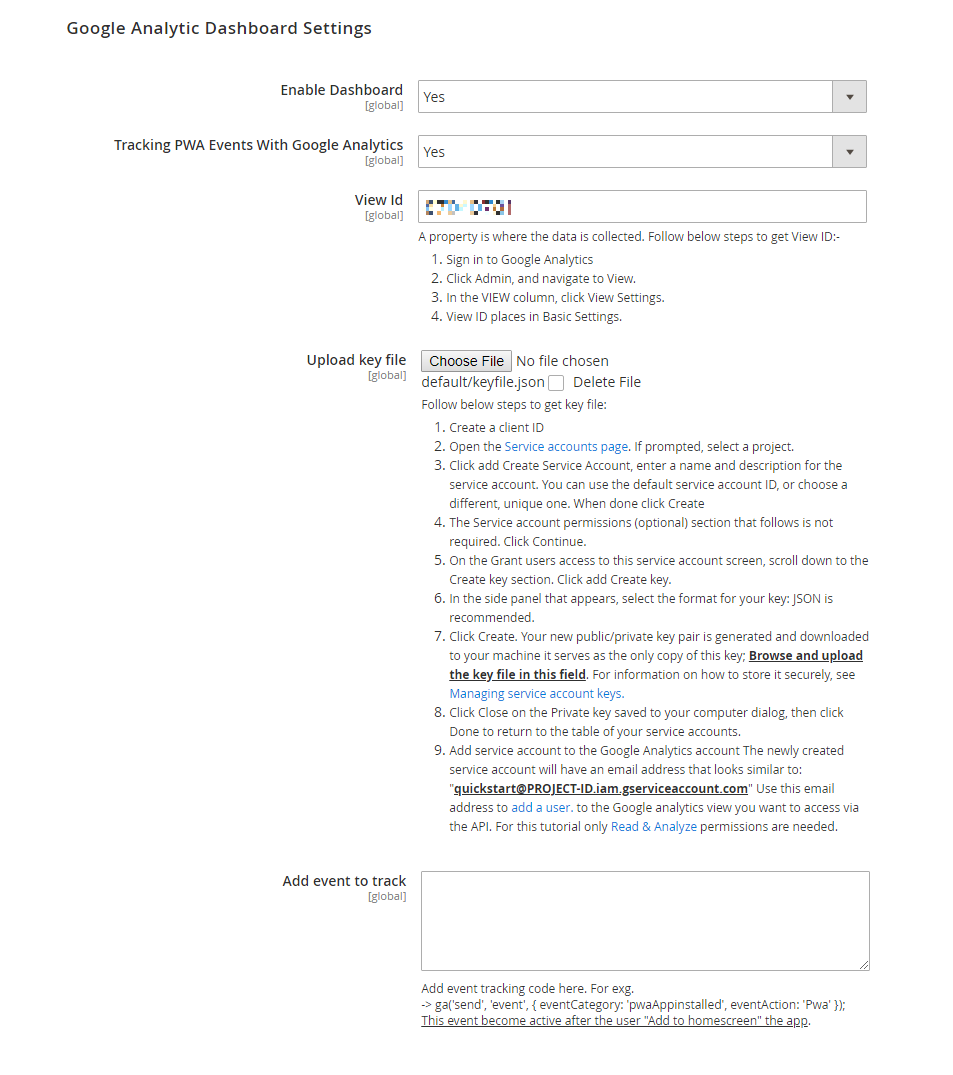
- Add Google analytics code to your PWA app for tracking events & analytic dashboard. Add "View ID" to access your Google analytics dashboard to your store back-end.
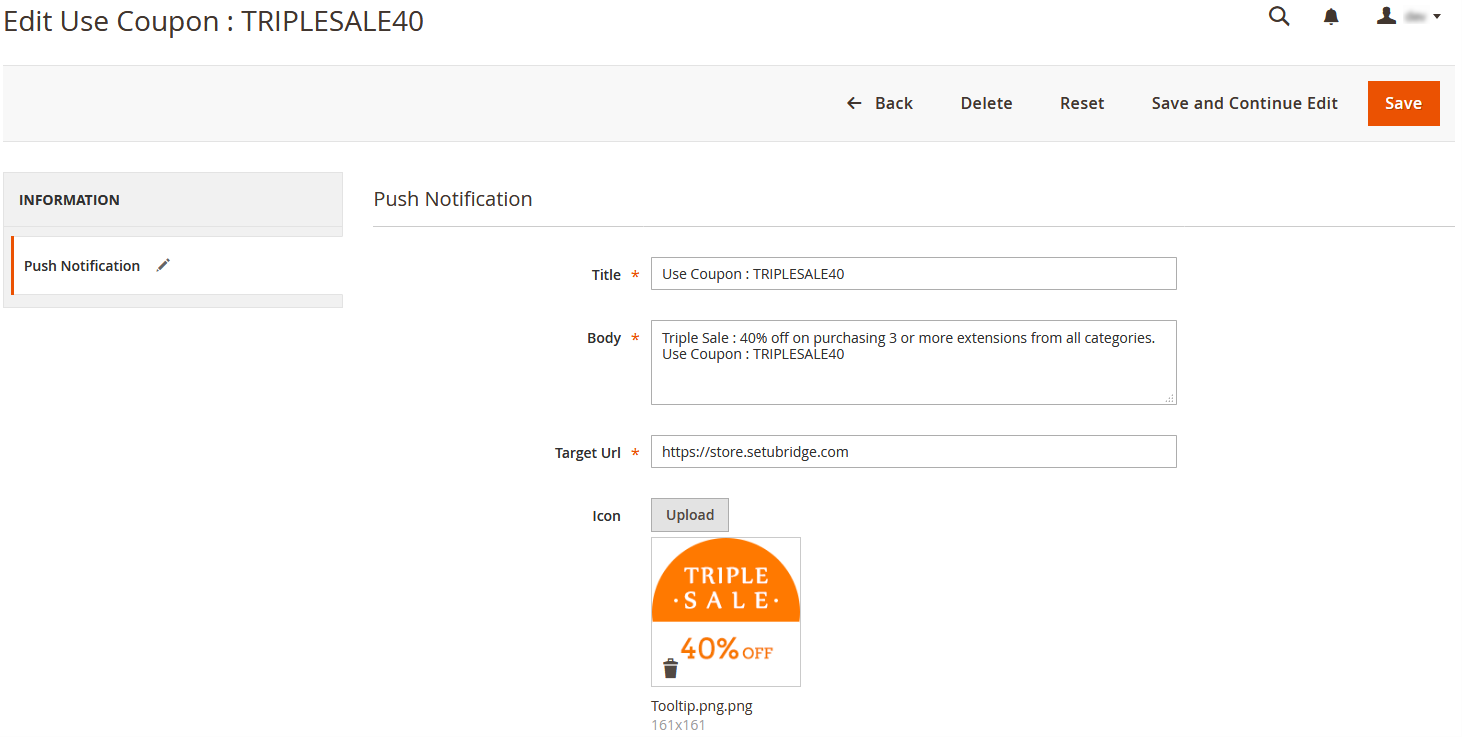
- Admin can generate push notification by using given configurations.
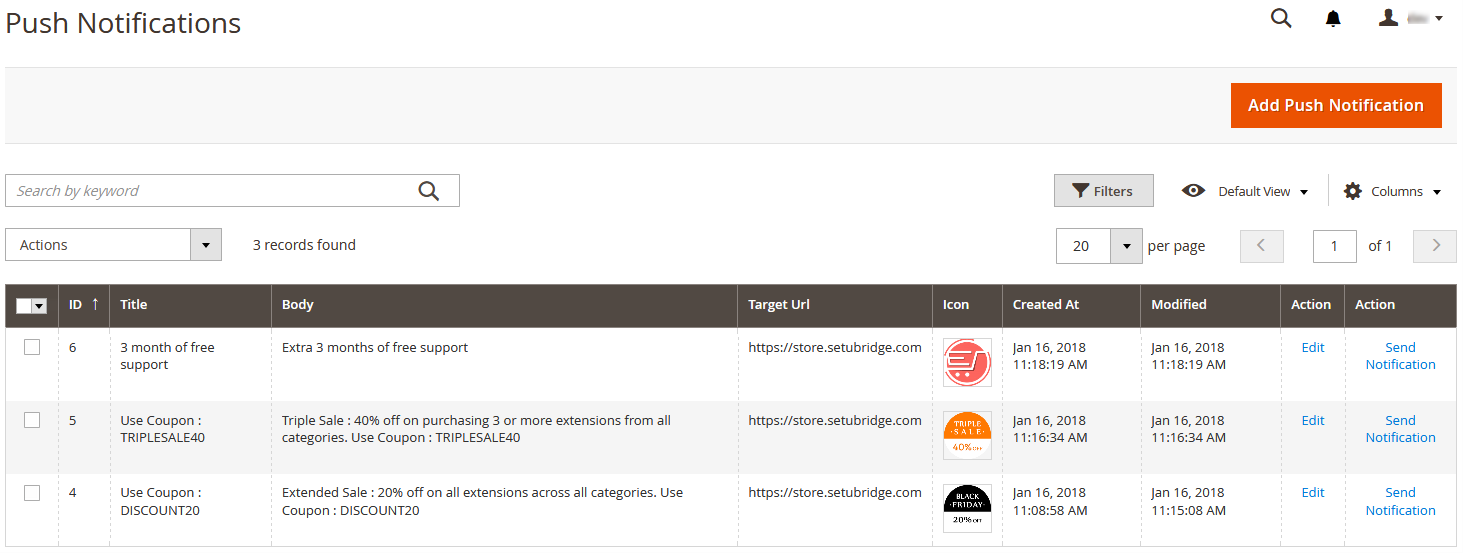
- Admin can send multiple push notifications at a time and generate them using the given configurations.
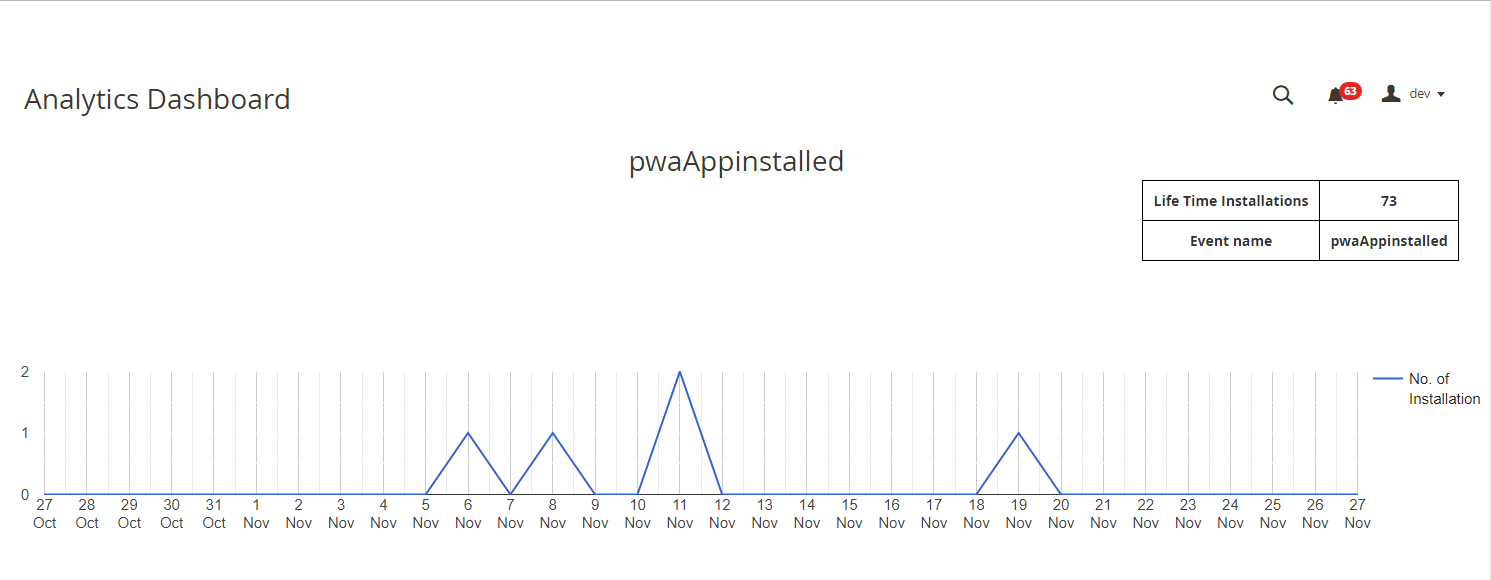
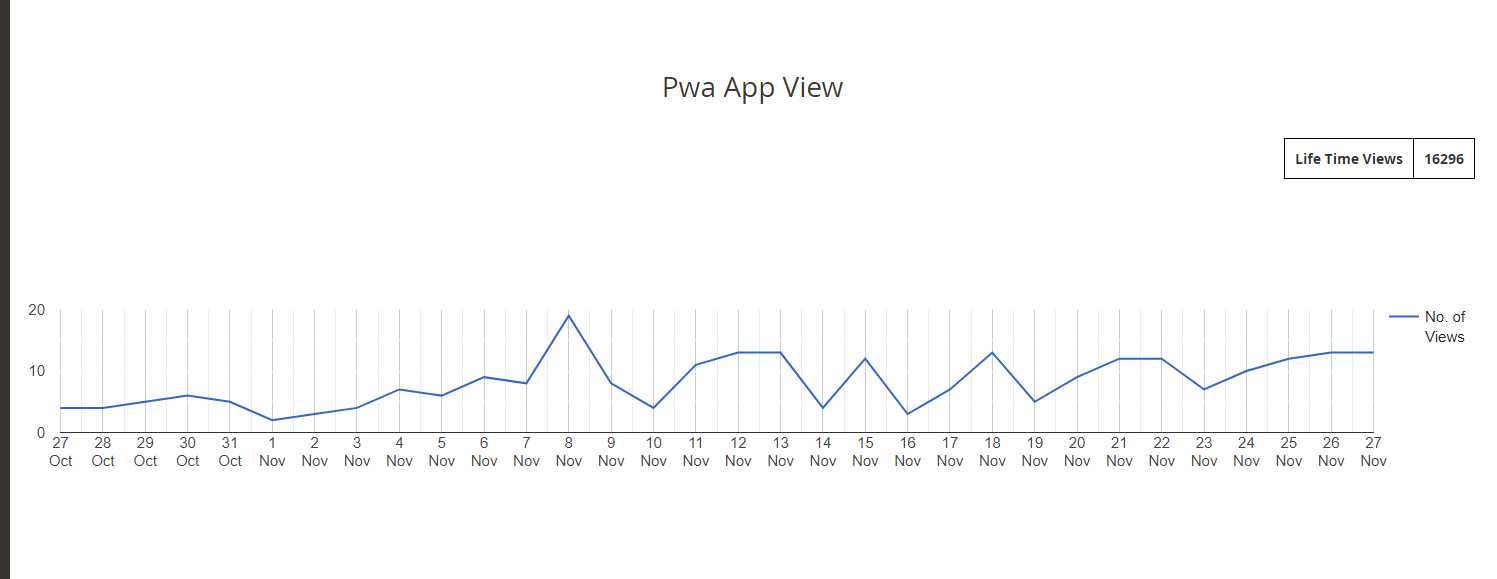
- PWA analytic dashboard which gives you a live event tracking data visually.
- While using the web app on the browser, the user will get a notification to download the application on their home screen.
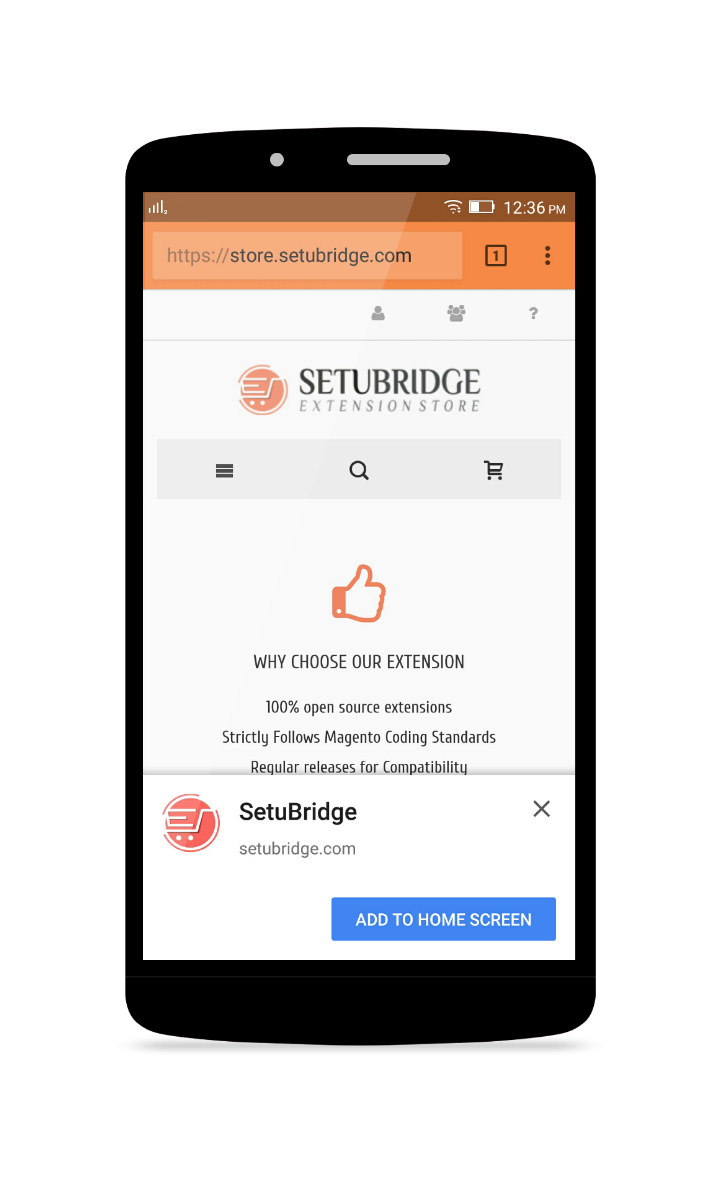
- User can see installed PWA like a native app.

- Once downloaded, the user will get a splash screen with the company logo and name, and will be able to get push notifications.
- Users will get notifications of promotions and offers.
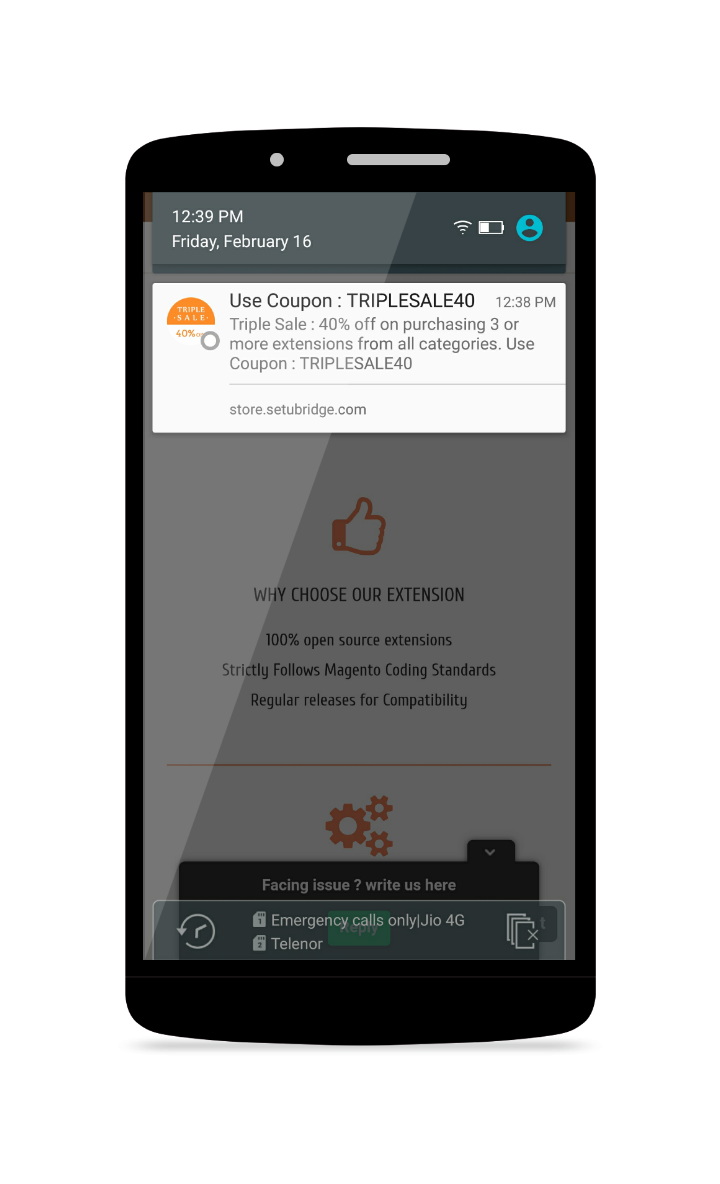
- The users will also receive notifications on the desktop site.

Here you can find answers to frequently asked questions. Feel free to contact if you can't find answer to your question.
1. What is a PWA?
Websites are the new mobile apps, PWAs are extended version of your website with best features of native apps.
2. Does site should has valid HTTPS connection?
Yes, Your site should has https.
3. Can i set specific page as offline ?
Yes, You can.
"If you have any other questions or problems regarding this plugin, you can always contact us using the contact form and we'd be happy to help you. No guarantees, but we'll do our best to assist."
Our support operators are always glad to help you here [email protected]
Note: We are happy to help with setup and any bugs you may stumble upon.